


TruStage is Temporarily Unavailable. TruStage has reported that they are currently experiencing system outages. Members may experience inconveniences while attempting to submit claims for GAP Insurance, Auto and Home, or Payment Protection to TruStage. For more information, please visit TruStage’s website.
 Utilities Employees Credit Union
Customize Your Account List
& Dashboard Tiles
Follow these simple steps to personalize your digital banking dashboard
1
Step 1:
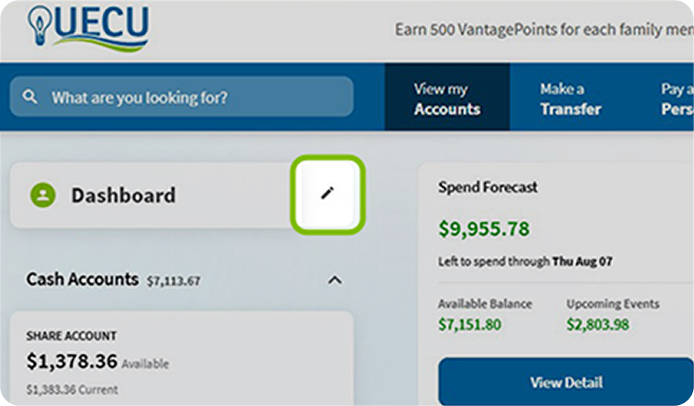
Select the Pencil Icon.
Desktop:
Next to “Dashboard” to customize the account list and the dashboard tiles.
Mobile:
Next to the Welcome message to customize the account list and next to “My Dashboard” to customize the dashboard tiles.
2
Step 2:
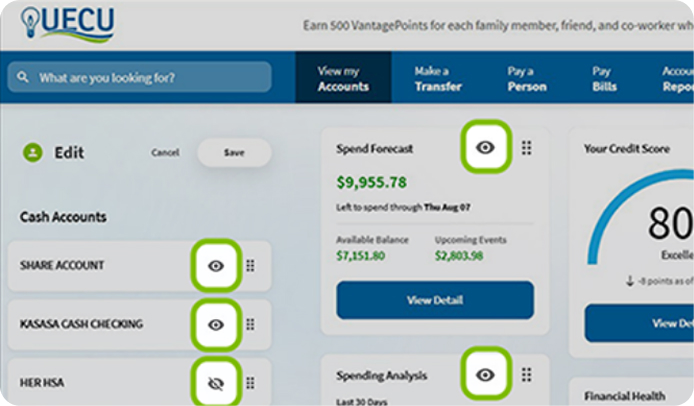
Click/Tap on the Eye Icons to hide or unhide accounts and/or dashboard tiles.
3
Step 3:
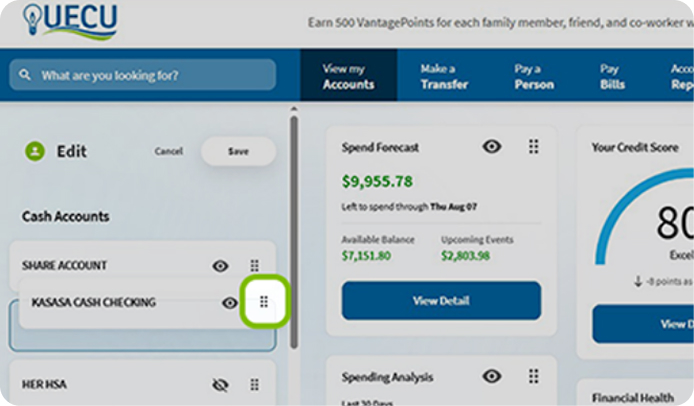
Select and drag the 6-dot handles to change the order of accounts and/or the arrangement of dashboard tiles.
4
Step 4:
Select 'Save' to keep your changes.


TIP:
To select and view account activity, the account must be visible. Moving infrequently used accounts to the bottom of the list may be preferable to hiding them completely.
Make the Most of Your Digital Banking Experience!
Once you’ve successfully logged into Mobile or Online Banking for the first time, follow these simple steps to make the most of your new digital banking experience.
Set Up Alerts
You'll automatically receive Security Alerts for your UECU account. But you may also set up Subscription Alerts for transactions you want to be notified about. To get started, choose Alerts from the menu in mobile, or the 3-dot menu online. Card alerts can be found under Card Services on your debit or credit card-associated account.
View Your UECU Accounts
If you have more than one UECU membership account, you can log in once to access all of them. When you sign into your primary account and select the profile icon, you can switch into your other UECU accounts.
Set Up Profile Pictures for Your UECU Accounts
Add a profile picture to each of your UECU accounts so you can easily find them on your membership account profiles list. For instructions, search for "profile" in the FAQs in Mobile and Online Banking.
View Your Credit Score with SavvyMoney®
Get easy access to your free credit score and report and receive credit monitoring alerts. Select the Your Credit Score tile to view your report. You can refresh your score every 24 hours.
Create a Savings Goal
Set and track your savings goals to keep you on course for your next vacation, home upgrade, or big purchase. To get started, select the Create a Savings Goal on the dashboard.